
This chapter covers the Introduction to Microsoft Access from the 2nd Year (ICS Part-II) Computer Science syllabus of the Punjab Curriculum and Textbook Board (PTB/PCTB). It explains what MS Access is, how to start and exit it, how to create a database, the Access window and the main database objects. These notes are prepared by freebooks.pk.
Microsoft Access is a popular database management system for building small and medium databases. This chapter introduces Access and its main parts so that a student can begin to create databases.
Learning Objectives
- State what Microsoft Access is.
- Describe how to start and exit Access.
- Explain how to create a database with and without the wizard.
- Identify the parts of the Access application window.
- List and describe the main database objects.
- State the uses of tables, queries, forms and reports.
Key Concepts
What is Microsoft Access?
Microsoft Access is a database management system (DBMS) produced by Microsoft, used to create and manage relational databases on a personal computer. It lets a user store data in tables, retrieve it with queries, enter and view it through forms, and print it as reports, all through an easy graphical interface. Access is well suited to small and medium databases for schools, small businesses and personal use.
Starting and Exiting Access
Microsoft Access is started like any other Windows program, for example from the Start menu or by clicking its icon. When it opens, the user can create a new database or open an existing one. To exit Access, the user closes the database and then closes the program from the File menu or the close button; Access saves the design of any objects and prompts the user to save changes so that no work is lost.
Creating a Database
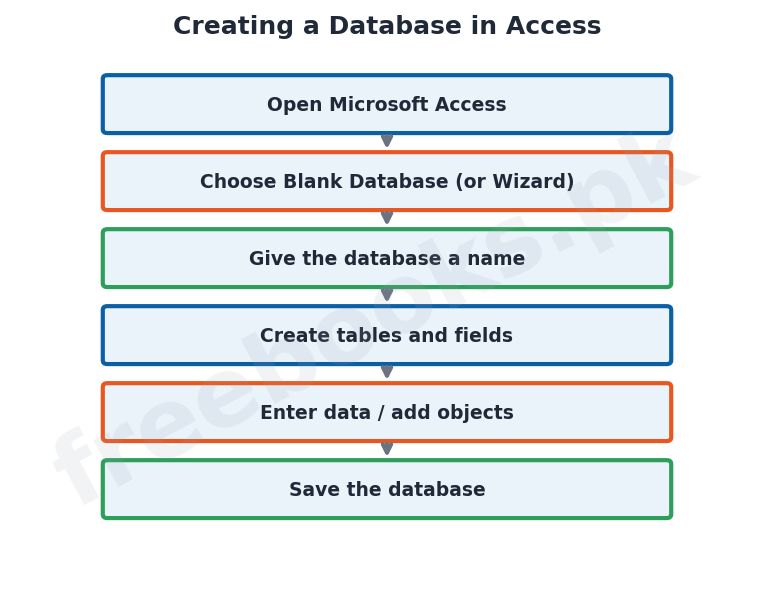
A new database in Access can be created in two ways. Using the Database Wizard, the user chooses a ready-made template (such as contacts or inventory) and Access automatically builds the tables, forms and reports, which is quick for common tasks. Without the wizard, the user creates a blank database and then designs each table, query, form and report themselves, which gives full control. In both cases the database is given a name and saved as a file before work continues.
The Access Application Window
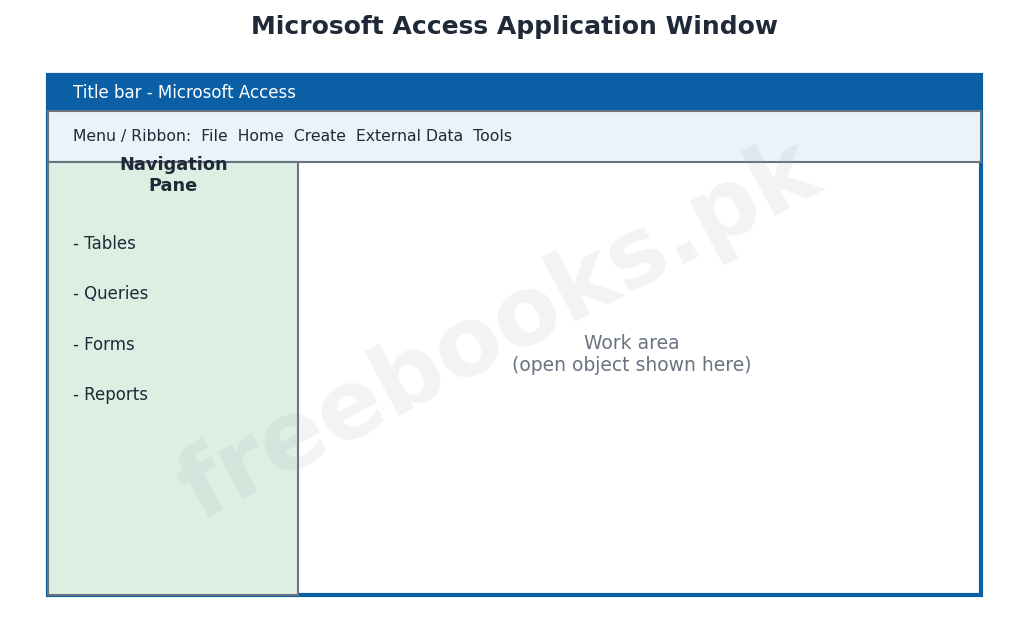
The Microsoft Access window has several parts. The title bar shows the program and database name. The menu bar or ribbon contains the commands, grouped under tabs such as Home and Create. The Navigation Pane, usually on the left, lists all the objects in the database (tables, queries, forms and reports) and lets the user open them. The main work area in the centre displays whichever object is currently open, and a status bar at the bottom shows information about the current task.
Database Objects
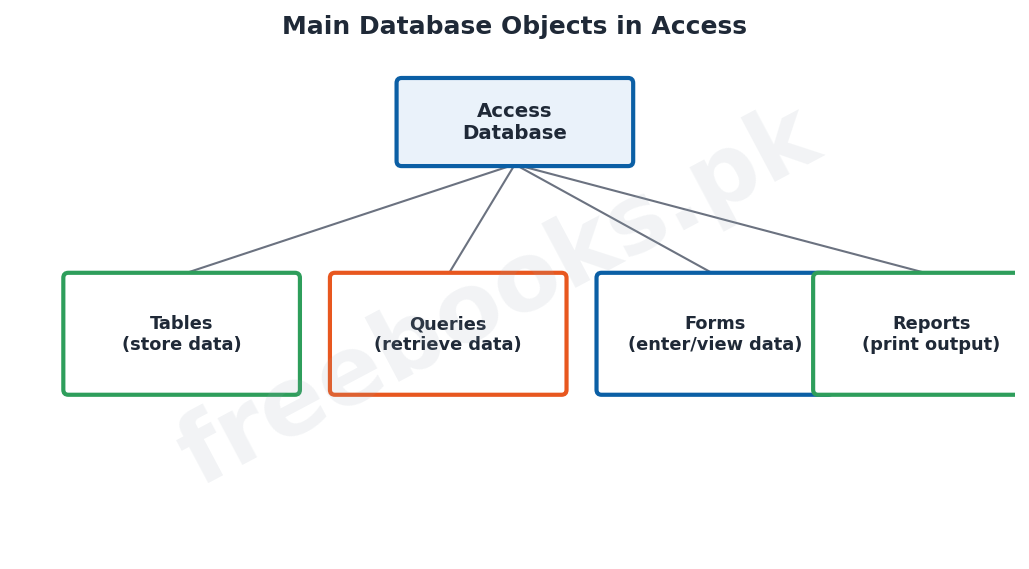
An Access database is made up of several kinds of object, each with its own job. Tables store the actual data in rows and columns. Queries retrieve and display selected data that answers a question. Forms provide a convenient screen layout for entering and viewing data one record at a time. Reports produce neatly formatted output for printing. Access also has macros and modules for automating tasks. Together these objects make up a complete database application.
Tables and Queries
The table is the most important object, because it actually holds the data; every database must have at least one table, and each table stores the records of one entity, such as students, with a field for each attribute and a primary key. A query is an object that asks a question of the data, for example ‘list all students with marks above 80’. The query selects only the records and fields that match its conditions and shows the result, without changing the stored data.
Forms and Reports
A form is an object that presents the data in an attractive on-screen layout, usually showing one record at a time, and it is used to make entering, viewing and editing data easy and less error-prone than typing directly into a table. A report is an object designed for printing; it takes data from tables or queries and arranges it neatly, often with headings, totals and page numbers, to produce professional printed output such as mark sheets or bills.
Important Definitions
Microsoft Access
A DBMS by Microsoft used to create and manage databases on a PC.
Database Wizard
A tool that builds a database automatically from a template.
Navigation Pane
The pane listing all the objects in an Access database.
Table
The object that stores data in rows and columns.
Query
The object that retrieves selected data answering a question.
Form
The object providing a screen layout to enter and view data.
Report
The object that produces formatted output for printing.
Database object
A component of an Access database (table, query, form, report).
Key Facts & Rules
| Item | Detail |
|---|---|
| MS Access | A DBMS for relational databases on a PC |
| Create a database | Blank database or Database Wizard (template) |
| Window parts | Title bar, ribbon, Navigation Pane, work area |
| Table | Stores data |
| Query | Retrieves data |
| Form / Report | Enters and views data / prints output |
Diagrams & Illustrations
Access application window: the Microsoft Access window with its title bar, ribbon, Navigation Pane listing objects, and the work area.
Database objects: the main objects of an Access database: tables, queries, forms and reports.
Creating a database: the steps to create a database in Access, from opening it to saving the finished database.
Solved Examples & Practice
Choose the object
To type in the details of a new student one record at a time, use a form; to store all students’ data, use a table.
Use a query
To list only the students who failed, create a query with the condition Marks < 40.
Create quickly
To build a ready-made contacts database quickly, use the Database Wizard with a contacts template.
Print output
To print a neat mark sheet, design a report based on the students table or a query.
Short Questions & Answers
What is Microsoft Access?
A database management system (DBMS) by Microsoft used to create and manage databases on a personal computer.
Name two ways to create a database in Access.
Using the Database Wizard (a template) or creating a blank database and designing it yourself.
What is the Navigation Pane?
The pane, usually on the left, that lists all the objects (tables, queries, forms, reports) of the database.
What is the function of a table?
To store the actual data of the database in rows and columns.
What is a query used for?
To retrieve and display selected data that answers a question, without changing the stored data.
Differentiate a form and a report.
A form is used to enter and view data on screen; a report is used to produce formatted output for printing.
Long Questions & Answers
Q1: Describe Microsoft Access and explain how a database is created in it.
Microsoft Access is a database management system, or DBMS, produced by Microsoft and widely used to create and manage relational databases on a personal computer. It provides an easy graphical interface through which a user can store data in tables, retrieve it using queries, enter and view it through forms, and print it as reports, without needing to write complicated programs; this makes it very suitable for the small and medium-sized databases used by schools, small businesses and individuals. Access is started like any other Windows application, from the Start menu or by clicking its icon, and when it opens the user may either create a new database or open an existing one. A new database can be created in two ways. The first is by using the Database Wizard, in which the user selects a ready-made template, such as one for contacts or for inventory, and Access automatically builds a complete set of tables, forms and reports for that purpose; this is quick and convenient for common tasks. The second way is to create a blank database, in which the user starts with an empty database and then designs each table, query, form and report personally; this takes more effort but gives the user full control over the structure of the database. In both cases, the new database must first be given a name and saved as a file on the disk before the user goes on to build or fill it. Once created, the database can be opened, edited and used whenever needed.
Q2: Describe the Microsoft Access application window and its main parts.
When Microsoft Access is opened with a database, its application window is displayed, and this window has several important parts, each with a particular purpose. Across the very top is the title bar, which shows the name of the program and of the database that is currently open. Below it is the menu bar, which in modern versions of Access takes the form of a ribbon: this is a broad strip of commands organised into tabs such as Home, Create and External Data, and clicking a tab reveals the buttons for the related tasks, such as creating a new table or running a query. Down one side, usually the left, is the Navigation Pane, which lists all the objects that make up the database, grouped by type into tables, queries, forms and reports; from this pane the user can open any object simply by double-clicking it, and it gives a clear overview of the whole database. The large central part of the window is the work area, in which whichever object the user has opened, a table, a form, a query result or a report, is actually displayed and worked on. Finally, along the bottom is the status bar, which shows helpful information about the current view or task. Understanding these parts allows the user to move about the Access window confidently and to find and use the commands and objects they need.
Q3: Describe the main objects of an Access database and state the purpose of each.
A Microsoft Access database is not a single thing but is made up of several different kinds of component called objects, each of which does a particular job, and together they form a complete database application. The most important object is the table, because it is the table that actually stores the data; every database must contain at least one table, and each table holds the records of a single entity, such as students or books, with a column (field) for each attribute and a primary key to identify each record uniquely. The next object is the query, whose purpose is to retrieve information from the tables; a query asks a question of the data, such as listing all the students whose marks are above eighty, and it displays just the records and fields that satisfy its conditions, without altering the data that is stored. Then there is the form, which provides a convenient and attractive layout on the screen, usually showing one record at a time, so that entering, viewing and editing data is easy and less likely to cause mistakes than typing directly into a table. There is also the report, which is designed for printing; a report takes data from tables or queries and arranges it neatly, often with headings, groupings, totals and page numbers, to produce professional printed output such as a mark sheet or a bill. In addition, Access provides macros and modules, which are used to automate repeated tasks and to add extra functions. By combining these objects, tables to store, queries to find, forms to enter and view, and reports to print, a user can build a full, working database system in Access.
MCQs with Answers
Microsoft Access is a: (a) word processor (b) DBMS (c) spreadsheet (d) browser
Correct Answer: (b) DBMS.
A ready-made way to build a database quickly is the: (a) query (b) Database Wizard (c) report (d) macro
Correct Answer: (b) Database Wizard.
The pane listing all database objects is the: (a) title bar (b) Navigation Pane (c) status bar (d) ribbon
Correct Answer: (b) Navigation Pane.
The object that stores data is the: (a) query (b) table (c) form (d) report
Correct Answer: (b) table.
The object that retrieves selected data is the: (a) table (b) query (c) form (d) macro
Correct Answer: (b) query.
The object used to enter data one record at a time is the: (a) report (b) form (c) table (d) query
Correct Answer: (b) form.
The object used to print formatted output is the: (a) form (b) report (c) query (d) table
Correct Answer: (b) report.
Every database must have at least one: (a) report (b) form (c) table (d) macro
Correct Answer: (c) table.
A query with Marks < 40 will list students who: (a) passed (b) failed (c) scored 100 (d) are absent
Correct Answer: (b) failed.
Access is best suited for ___ databases: (a) only huge (b) small and medium (c) only text (d) no
Correct Answer: (b) small and medium.
Quick Revision Summary
- MS Access = DBMS for relational databases on a PC (easy graphical interface).
- Create a database: Database Wizard (template) or blank database (full control); save with a name.
- Window: title bar, ribbon (Home/Create…), Navigation Pane (lists objects), work area.
- Objects: table (store), query (retrieve), form (enter/view), report (print); plus macros/modules.
- Table has fields + primary key; query shows matching records without changing data.
- Form = on-screen entry/view; report = printed output. Notes by freebooks.pk.
Exam Tips
- State what Access is (a DBMS).
- Give the two ways to create a database.
- Label the parts of the Access window.
- List the four main objects and their jobs.
- Match table/query/form/report to store/retrieve/enter/print.
- Remember every database needs at least one table.