This chapter covers Word Processing from the 1st Year (ICS Part-I) Computer Science syllabus of the Punjab Curriculum and Textbook Board (PTB/PCTB). It explains what a word processor is, how to create, edit, format, save and print documents, and useful features such as find and replace, spell check, tables and mail merge. These notes are prepared by freebooks.pk.
A word processor is one of the most widely used application programs. This chapter explains how it is used to produce neat, professional documents such as letters, reports and assignments.
Learning Objectives
- Define word processing and a word processor.
- Describe how to create, save, open and print a document.
- Explain editing features such as cut, copy, paste and find/replace.
- Explain text formatting.
- Describe useful features like spell check, tables and mail merge.
- State the advantages of a word processor over a typewriter.
Key Concepts
Word Processing and the Word Processor
Word processing is the use of a computer to create, edit, format, store and print documents made of text. A word processor is the application software used for this purpose; common examples are Microsoft Word and similar programs. With a word processor a user can type documents such as letters, reports, assignments and books, change them easily, make them look attractive, and save them for later use or printing.
Creating, Saving and Printing a Document
To make a document the user opens the word processor, which shows a blank page, and types the text using the keyboard. The document is then saved with a name on a disk so that it is not lost and can be opened and changed again later. A saved document can be reopened at any time, and when it is ready it can be printed on paper to produce a hard copy. Saving regularly is important so that work is not lost if the computer fails.
Editing a Document
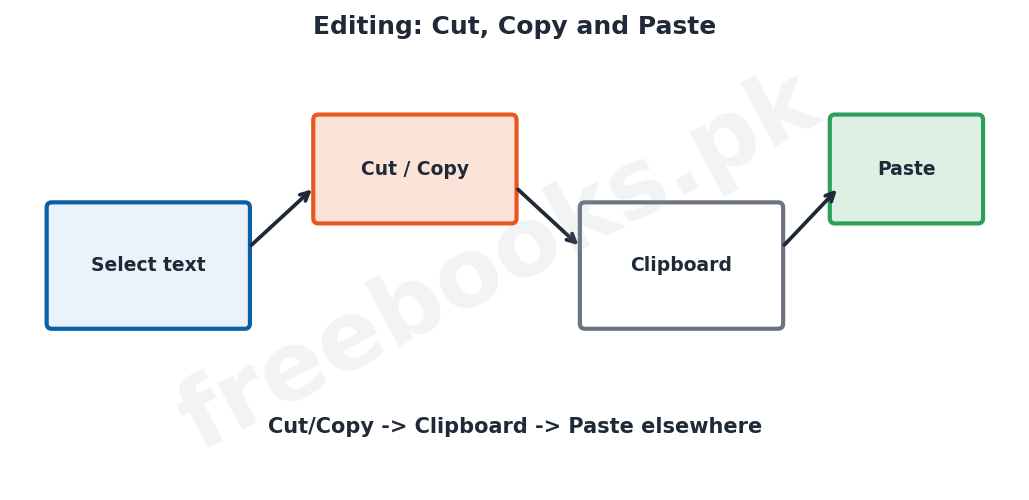
Editing means changing the contents of a document. A word processor makes editing easy. Text can be inserted or deleted anywhere, and a block of text can be selected and then cut (removed) or copied and pasted somewhere else, using the clipboard. The find (search) feature locates a word in the document, and find and replace changes every occurrence of one word with another automatically. These features save a great deal of time compared with retyping.
Formatting Text
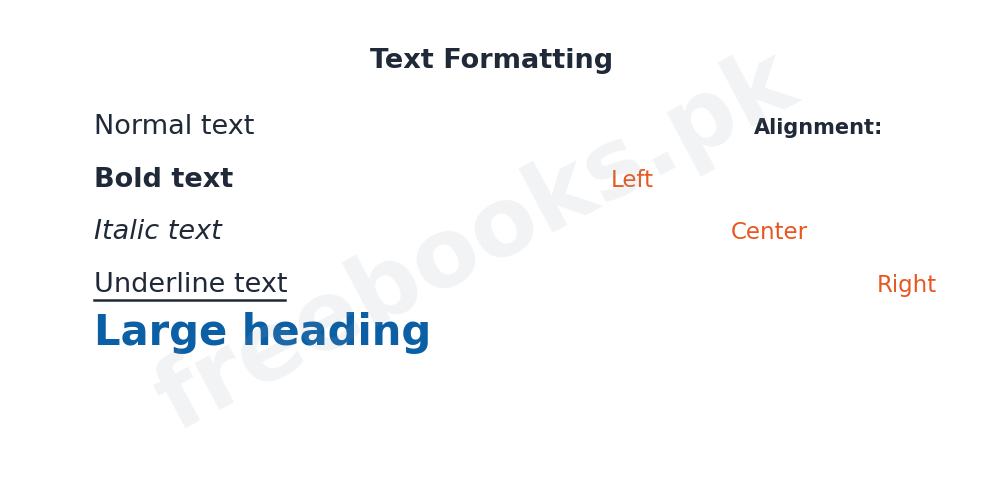
Formatting means changing the appearance of a document to make it clear and attractive. The user can change the font (style) and size of the text, make text bold, italic or underlined, change its colour, and set the alignment of paragraphs to the left, right, centre or justified. Line spacing, margins, bullets and numbering can also be set. Good formatting makes a document easy to read and gives it a professional look.
Useful Features
Word processors provide many helpful features. The spelling and grammar checker finds and corrects mistakes. Tables let information be arranged neatly in rows and columns. Headers and footers put the same text (such as a page number or title) at the top or bottom of every page. Pictures and shapes can be inserted, and mail merge can produce many personalised letters (for example, the same letter addressed to different people) automatically from a list.
Mail Merge
Mail merge is a special feature used to create a large number of similar documents, such as letters or certificates, each personalised with different details. It combines a main document, which contains the fixed text, with a data source, which contains the variable information such as names and addresses. The word processor then produces one copy of the document for each record in the list, saving the user from typing each letter separately.
Advantages of a Word Processor
A word processor has many advantages over an old-fashioned typewriter. Mistakes can be corrected easily before printing, so no correction fluid is needed. Documents can be saved and reused, and the same document can be printed many times. The appearance can be improved with formatting, spelling can be checked automatically, and copies can be shared electronically. These advantages make the word processor an essential tool in offices, schools and homes.
Important Definitions
Word processing
Using a computer to create, edit, format, store and print text documents.
Word processor
The application software used for word processing (e.g. MS Word).
Editing
Changing the contents of a document.
Formatting
Changing the appearance of a document.
Clipboard
A temporary store that holds cut or copied text for pasting.
Find and replace
A feature that finds a word and replaces it with another.
Header and footer
Text repeated at the top or bottom of every page.
Mail merge
Producing many personalised documents from a main document and a data list.
Key Facts & Rules
| Item | Detail |
|---|---|
| Word processor | Software to create/edit/format/print documents |
| Editing tools | Insert, delete, cut, copy, paste, find and replace |
| Formatting | Font, size, bold/italic/underline, colour, alignment |
| Save | Store a document with a name for later use |
| Spell check | Finds and corrects spelling mistakes |
| Mail merge | Main document + data source -> many letters |
Diagrams & Illustrations
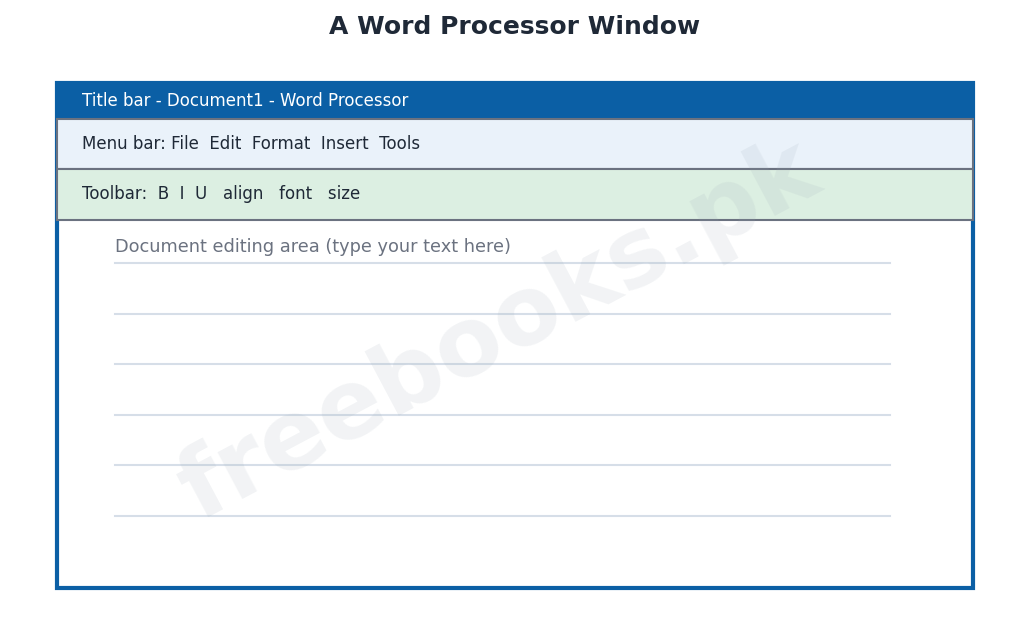
Word processor window: a word processor window with a title bar, menu bar, toolbar and the document editing area where text is typed.
Cut, copy and paste: selecting text, cutting or copying it to the clipboard and pasting it elsewhere.
Text formatting: examples of formatting: bold, italic, underline, a large heading and left, centre and right alignment.
Solved Examples & Practice
Editing task
To move a paragraph to a new place without retyping it, select it, cut it, then paste it in the new location.
Formatting task
To make a heading stand out, select it and make it bold and larger, then centre it.
Find and replace
To change the word ‘colour’ to ‘color’ everywhere in a document, use find and replace.
Mail merge
To send the same invitation to fifty people with their names filled in, use mail merge with a list of names.
Short Questions & Answers
What is a word processor?
Application software used to create, edit, format, save and print text documents, such as MS Word.
Differentiate editing and formatting.
Editing changes the contents of a document (adding, deleting, moving text); formatting changes its appearance (font, style, alignment).
What is the clipboard?
A temporary storage area that holds text that has been cut or copied, ready to be pasted.
What is find and replace?
A feature that finds a word in a document and replaces every occurrence of it with another word.
What is a header and footer?
Text, such as a page number or title, that is repeated at the top (header) or bottom (footer) of every page.
What is mail merge?
A feature that produces many personalised documents by combining a main document with a list of data.
Long Questions & Answers
Q1: Define word processing and describe how a document is created, edited and formatted.
Word processing is the use of a computer to create, edit, format, store and print documents that are made up of text, and the application software used to do it is called a word processor; common examples include Microsoft Word. Working with a word processor involves three main activities. The first is creating the document: the user opens the word processor, which presents a blank page, types the text using the keyboard, and then saves the document under a name on a disk so that it will not be lost and can be opened again later; when it is complete it can be printed to give a hard copy on paper. The second activity is editing, which means changing the contents of the document. Because the text is held in the computer, it is very easy to insert new text, delete unwanted text, or select a block of text and move it by cutting it and pasting it elsewhere, or copy it to repeat it; the find feature can locate a particular word, and find and replace can change every occurrence of a word automatically. The third activity is formatting, which means changing the appearance of the document to make it clear and attractive. The user can choose the font and size of the text, make words bold, italic or underlined, change their colour, and align paragraphs to the left, right, centre or justified, as well as adjust line spacing, margins and add bullets or numbering. Together, these abilities to create, edit and format make it easy to produce neat, professional documents quickly.
Q2: Describe the useful features of a word processor, including spell check, tables and mail merge.
Beyond the basic typing and formatting of text, a word processor offers many features that make producing documents faster and easier. One of the most useful is the spelling and grammar checker, which automatically finds spelling and grammar mistakes and suggests corrections, so that documents can be made accurate without careful manual proofreading. Tables allow information to be arranged neatly in rows and columns, which is ideal for lists, timetables and results. Headers and footers place the same information, such as a title, the date or an automatic page number, at the top or bottom of every page. Pictures, shapes, charts and symbols can be inserted into the text to illustrate the document. A particularly powerful feature is mail merge, which is used to produce a large number of similar documents that differ only in certain details, such as letters or certificates each addressed to a different person. Mail merge works by combining a main document, which contains the text that is the same on every copy, with a data source, which is a list containing the variable information such as names and addresses; the word processor then automatically produces one personalised copy for each record in the list. This saves an enormous amount of time compared with typing each letter separately. Features such as these are what make the word processor so much more than an electronic typewriter.
Q3: Explain the advantages of using a word processor over a typewriter.
The word processor has almost completely replaced the typewriter because it offers many important advantages. The greatest advantage is the ease of correcting and changing text: with a typewriter a mistake meant retyping the page or using correction fluid, but with a word processor any mistake can be corrected on the screen before the document is printed, and text can be inserted, deleted or moved freely. A word processor can save a document on a disk, so that the same document can be opened, edited and printed again and again, and many identical copies can be printed from one file, whereas a typist would have to retype the whole document each time. The appearance of the work can be greatly improved by formatting, choosing different fonts and sizes, using bold and italic, aligning and spacing the text and adding tables and pictures, none of which is possible on an ordinary typewriter. The built-in spelling and grammar checker helps to remove errors automatically, and features such as find and replace and mail merge save time on repetitive work. Finally, documents produced on a word processor can be stored compactly, shared electronically by e-mail and reused as templates. For all these reasons the word processor is faster, more flexible and produces far better-looking results than a typewriter, and it has become an essential tool in offices, schools and homes.
MCQs with Answers
Software used to create and edit text documents is a: (a) spreadsheet (b) word processor (c) browser (d) compiler
Correct Answer: (b) word processor.
Changing the contents of a document is: (a) formatting (b) editing (c) saving (d) printing
Correct Answer: (b) editing.
Changing the appearance of a document is: (a) editing (b) formatting (c) copying (d) deleting
Correct Answer: (b) formatting.
Cut or copied text is held on the: (a) desktop (b) clipboard (c) taskbar (d) printer
Correct Answer: (b) clipboard.
Making text darker and thicker is applying: (a) italic (b) bold (c) underline (d) colour
Correct Answer: (b) bold.
Text repeated at the bottom of every page is a: (a) header (b) footer (c) margin (d) title
Correct Answer: (b) footer.
Changing every ‘colour’ to ‘color’ at once uses: (a) spell check (b) find and replace (c) mail merge (d) print
Correct Answer: (b) find and replace.
Producing many personalised letters uses: (a) mail merge (b) clipboard (c) header (d) font
Correct Answer: (a) mail merge.
Arranging data in rows and columns uses a: (a) table (b) header (c) font (d) margin
Correct Answer: (a) table.
An advantage of a word processor over a typewriter is: (a) cannot save (b) easy correction (c) no printing (d) slower
Correct Answer: (b) easy correction of mistakes.
Quick Revision Summary
- Word processor = software to create/edit/format/save/print documents (e.g. MS Word).
- Create -> save (with a name) -> open again -> print (hard copy).
- Editing: insert, delete, cut/copy/paste (clipboard), find and replace.
- Formatting: font, size, bold/italic/underline, colour, alignment, spacing.
- Features: spell check, tables, headers/footers, images, mail merge.
- Advantages over typewriter: easy correction, save/reuse, formatting, spell check. Notes by freebooks.pk.
Exam Tips
- Define word processing and name a word processor.
- Clearly separate editing from formatting.
- Explain cut/copy/paste using the clipboard.
- List formatting options (font, bold, alignment).
- Describe mail merge (main document + data list).
- Give advantages of a word processor over a typewriter.