This chapter covers the Windows Operating System from the 1st Year (ICS Part-I) Computer Science syllabus of the Punjab Curriculum and Textbook Board (PTB/PCTB). It explains the types and purpose of operating systems, the difference between GUI and command-line systems, the objects of the Windows desktop and the management of files and folders. These notes are prepared by freebooks.pk.
The operating system is the most important software on a computer. Windows is a popular graphical operating system, and this chapter explains how it lets us control the computer and organise our work.
Learning Objectives
- State the purpose of an operating system.
- Distinguish GUI and command-line operating systems.
- Identify the main objects of the Windows desktop.
- Describe basic window operations.
- Explain files and folders and how they are organised.
- Describe simple file management tasks.
Key Concepts
Purpose of an Operating System
An operating system (OS) is the system software that controls and manages all the operations of a computer and acts as a bridge between the user and the hardware. Its main purposes are to start the computer, manage the memory, control the input and output devices, organise files and folders on the disk, load and run application programs, and provide a convenient way for the user to give commands. Without an operating system the computer cannot be used.
Types of Operating System: GUI and CLI
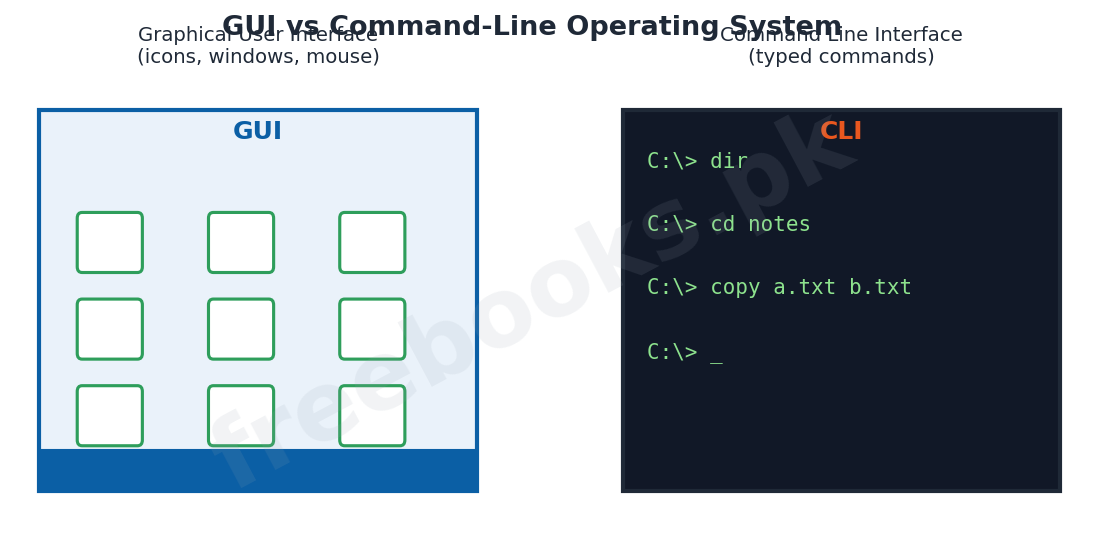
Operating systems provide two main kinds of user interface. A graphical user interface (GUI) operating system, such as Windows, lets the user work with pictures called icons, windows, menus and buttons using a mouse, which is easy to learn and use. A command-line interface (CLI) operating system, such as DOS, requires the user to type commands in words; it is powerful and uses fewer resources but is harder to learn because the user must remember the commands. Windows is a GUI operating system.
Objects of the Windows Desktop
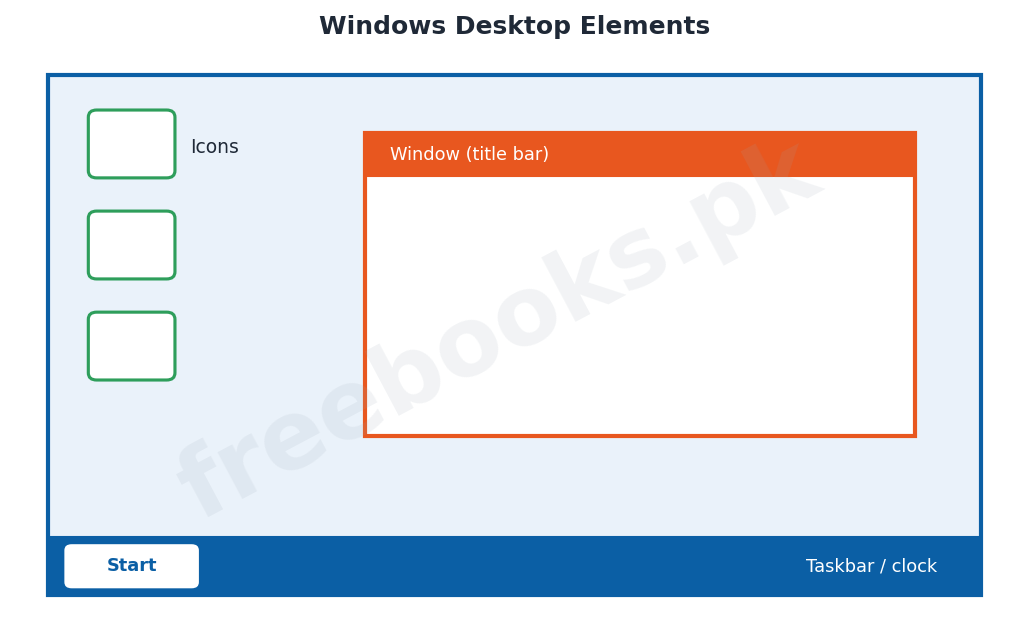
When Windows starts, it displays the desktop, the main working screen. The desktop contains several objects. Icons are small pictures that represent programs, files or folders, and can be opened with a click. The taskbar is the bar (usually at the bottom) that shows the running programs and the clock. The Start button (or Start menu) opens a menu from which programs and settings can be launched. A window is the rectangular area in which a program or folder is displayed, with a title bar at the top.
Window Operations
Because several programs can run at once, each in its own window, Windows lets the user control these windows. A window can be minimised (reduced to a button on the taskbar), maximised (enlarged to fill the screen) or restored to its previous size, and it can be moved by dragging its title bar or resized by dragging its border. A window is closed with the close button. These operations let the user switch easily between different tasks.
Files and Folders
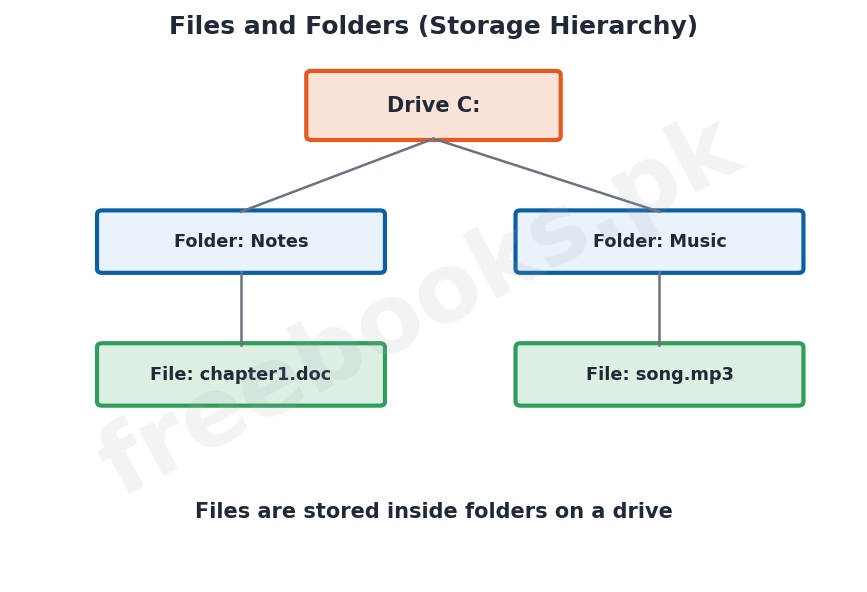
All the information on a computer is stored as files. A file is a collection of related data or a program stored under a name, such as a document or a picture. To keep files organised, they are grouped into folders (also called directories), and folders may contain other folders, forming a tree-like structure on a storage drive such as C:. Each file has a name and usually an extension (like .doc or .mp3) that shows its type.
File Management
Windows provides tools, such as File Explorer, for managing files and folders. Common file-management tasks include creating a new folder, copying or moving a file from one place to another, renaming a file, deleting a file (which sends it to the Recycle Bin), and searching for a file. Good file management, using clearly named folders, keeps work organised and makes files easy to find.
Working in Windows
To use Windows the user starts the computer, which loads Windows and shows the desktop; programs are then opened from the Start menu or by clicking an icon. The mouse is used to point, click, double-click and drag, and the keyboard to type. When work is finished, files are saved and the computer is shut down properly through the Start menu so that no data is lost. These simple skills allow a student to operate the computer confidently.
Important Definitions
Operating system
System software that controls the computer and links the user to the hardware.
GUI
A graphical user interface using icons, windows and a mouse (e.g. Windows).
CLI
A command-line interface in which the user types commands (e.g. DOS).
Desktop
The main working screen shown when Windows starts.
Icon
A small picture representing a program, file or folder.
Taskbar
The bar showing running programs and the clock.
File
A named collection of related data or a program.
Folder
A container used to organise files (also called a directory).
Key Facts & Rules
| Item | Detail |
|---|---|
| OS purpose | Manages hardware, memory, files; runs programs; user interface |
| GUI | Icons, windows, menus, mouse (Windows) |
| CLI | Typed commands (DOS) |
| Desktop objects | Icons, taskbar, Start menu, windows |
| Window ops | Minimise, maximise, restore, move, resize, close |
| File extension | Shows the file type (.doc, .mp3, .exe) |
Diagrams & Illustrations
GUI vs command-line: a graphical user interface with icons and windows compared with a command-line interface where the user types commands.
Windows desktop elements: the Windows desktop showing icons, a window with a title bar, the taskbar and the Start button.
Files and folders: a drive containing folders, which in turn contain files, forming a tree-like storage hierarchy.
Solved Examples & Practice
Identify the interface
Working with icons and a mouse in Windows is using a GUI; typing ‘dir’ to list files is using a CLI.
Window operation
Clicking the middle button on the title bar to make a window fill the whole screen is maximising it.
File extension
In the file ‘report.doc’, ‘report’ is the name and ‘.doc’ is the extension showing it is a document.
File management
Moving a file into a new clearly named folder is a file-management task that keeps work organised.
Short Questions & Answers
What is an operating system?
System software that controls and manages the computer and provides the interface between the user and the hardware.
Differentiate GUI and CLI operating systems.
A GUI uses icons, windows and a mouse and is easy to use; a CLI requires the user to type commands and is harder to learn.
What is the desktop?
The main working screen displayed when Windows starts, containing icons, the taskbar and the Start button.
What is an icon?
A small picture that represents a program, file or folder and can be opened with a click.
Differentiate a file and a folder.
A file is a named collection of data or a program; a folder is a container used to organise files.
Name three window operations.
Minimise, maximise and close (also restore, move and resize).
Long Questions & Answers
Q1: State the purpose of an operating system and distinguish between GUI and command-line operating systems.
An operating system is the most important piece of system software on a computer, because it controls and manages everything the machine does and provides the link between the user and the hardware. Its purposes are many. It starts the computer up when it is switched on and prepares it for use. It manages the main memory, deciding where programs and data are placed. It controls the input and output devices such as the keyboard, mouse, screen and printer, so that programs can use them. It organises the storage of information into files and folders on the disks and keeps track of where everything is. It loads and runs the user’s application programs and shares the processor’s time between them. Above all, it provides a convenient interface through which the user can give instructions to the computer. Operating systems offer this interface in one of two main styles. A graphical user interface (GUI) operating system, of which Windows is the best-known example, lets the user work with small pictures called icons, together with windows, menus and buttons, all controlled by a mouse; because the user can simply point and click, a GUI is easy to learn and pleasant to use, though it needs more memory and processing power. A command-line interface (CLI) operating system, such as the older DOS, has no pictures: the user must type commands in words, for example ‘dir’ to list files or ‘copy’ to copy them. A CLI is fast and uses few resources, and it gives an expert precise control, but it is harder for beginners because they must remember the exact commands. Windows is a GUI operating system, which is why it became so popular with ordinary users.
Q2: Describe the main objects of the Windows desktop and the basic window operations.
When Windows finishes loading, it displays the desktop, which is the main working area on the screen and the starting point for all the user’s work. Several important objects appear on the desktop. Icons are small pictures, each representing a program, a file or a folder; clicking or double-clicking an icon opens the item it stands for. The taskbar is the strip that usually runs along the bottom of the screen; it shows buttons for the programs that are currently running and normally displays the clock and other indicators, and it lets the user switch quickly from one open program to another. At one end of the taskbar is the Start button, which opens the Start menu, a list from which the user can launch programs, open documents, change settings and shut down the computer. When a program or folder is opened it appears in a window, a rectangular area with a title bar across the top showing its name. Because Windows can run several programs at once, each in its own window, it provides operations for managing them. A window can be minimised, which hides it away as a button on the taskbar without closing it; maximised, which enlarges it to fill the whole screen; or restored to its earlier size. A window can be moved to another position by dragging its title bar, resized by dragging its border, and finally closed with the close button when it is no longer needed. These operations let the user arrange the screen and move smoothly between different tasks.
Q3: Explain files and folders and describe basic file-management tasks in Windows.
All the information kept on a computer, whether it is a document, a picture, a song or a program, is stored as a file, which is simply a collection of related data saved under a name. To stop the thousands of files on a computer from becoming a confused jumble, they are organised into folders, also called directories, each of which is a container that can hold files and even other folders; in this way the storage on a drive such as the C: drive is arranged as a tree-like structure of folders within folders. Every file has a name, and usually an extension separated by a dot, such as .doc, .mp3 or .exe, which indicates the type of the file and the program that opens it. Windows provides a tool, File Explorer, for looking after files and folders, and the user can carry out a number of common file-management tasks. A new folder can be created and given a meaningful name to hold related files. A file can be copied, which makes a second copy in another place while leaving the original, or moved, which transfers it to a new place. A file can be renamed to give it a clearer name. A file that is no longer wanted can be deleted, which normally sends it to the Recycle Bin from where it can be recovered if deleted by mistake. Files can also be searched for by name when their location is forgotten. By using clearly named folders and keeping related files together, the user practises good file management, which keeps work tidy and makes any file quick and easy to find.
MCQs with Answers
The most important system software is the: (a) browser (b) operating system (c) compiler (d) spreadsheet
Correct Answer: (b) operating system.
Windows is an example of a ___ operating system: (a) command-line (b) GUI (c) assembly (d) network only
Correct Answer: (b) GUI.
Typing commands in words is a feature of a: (a) GUI (b) CLI (c) icon (d) window
Correct Answer: (b) CLI.
The main working screen in Windows is the: (a) taskbar (b) desktop (c) folder (d) file
Correct Answer: (b) desktop.
A small picture representing a program is an: (a) icon (b) index (c) image only (d) opcode
Correct Answer: (a) icon.
Making a window fill the whole screen is: (a) minimising (b) maximising (c) closing (d) moving
Correct Answer: (b) maximising.
A named collection of related data is a: (a) folder (b) file (c) drive (d) window
Correct Answer: (b) file.
A container that organises files is a: (a) file (b) folder (c) icon (d) taskbar
Correct Answer: (b) folder.
A deleted file usually goes to the: (a) taskbar (b) Recycle Bin (c) Start menu (d) desktop
Correct Answer: (b) Recycle Bin.
‘.doc’ at the end of a file name is the: (a) folder (b) extension (c) icon (d) path
Correct Answer: (b) extension.
Quick Revision Summary
- OS = master software; manages hardware, memory, files, runs programs, gives interface.
- GUI (Windows): icons/windows/mouse, easy. CLI (DOS): typed commands, harder.
- Desktop objects: icons, taskbar, Start button/menu, windows (title bar).
- Window ops: minimise, maximise, restore, move, resize, close.
- File = named data/program; folder organises files; extension shows type.
- File management: create folder, copy, move, rename, delete (Recycle Bin), search. Notes by freebooks.pk.
Exam Tips
- List the main purposes of the operating system.
- Compare GUI and CLI with examples (Windows vs DOS).
- Name the desktop objects (icons, taskbar, Start, window).
- Know the window operations (minimise/maximise/close).
- Differentiate a file from a folder; explain extensions.
- List common file-management tasks.