This chapter teaches the systematic process of troubleshooting — identifying and resolving problems with computers and other equipment. It covers the seven-step troubleshooting process, from identifying a problem through to documenting the outcome, and explains why troubleshooting matters: preventing downtime, protecting data integrity, improving security, and extending equipment life.
The chapter then covers practical strategies for common software issues (application freezing, unresponsive peripherals), hardware issues (cable disconnection, overheating, RAM and hard drive failures), workspace safety, software maintenance and security (updates, malware, strong passwords), and data backup methods, before closing with how to use available resources and effectively assist others with troubleshooting.
Learning Objectives
- Explain the importance of troubleshooting in maintaining and operating computer systems
- Describe and apply the seven-step systematic troubleshooting process
- Identify and resolve common software issues, such as application freezing and unresponsive peripherals
- Identify and resolve common hardware issues, including cable disconnection, overheating, and peripheral problems
- Diagnose hardware failures such as RAM and hard drive issues, and perform component replacements and upgrades
- Apply best practices for system security: updates, strong passwords, and malware protection
- Explain effective data management and backup methods, including external storage and cloud solutions
- Use built-in help features and internet resources to troubleshoot complex issues, and communicate solutions clearly to others
Key Concepts
4.1 The Systematic Troubleshooting Process
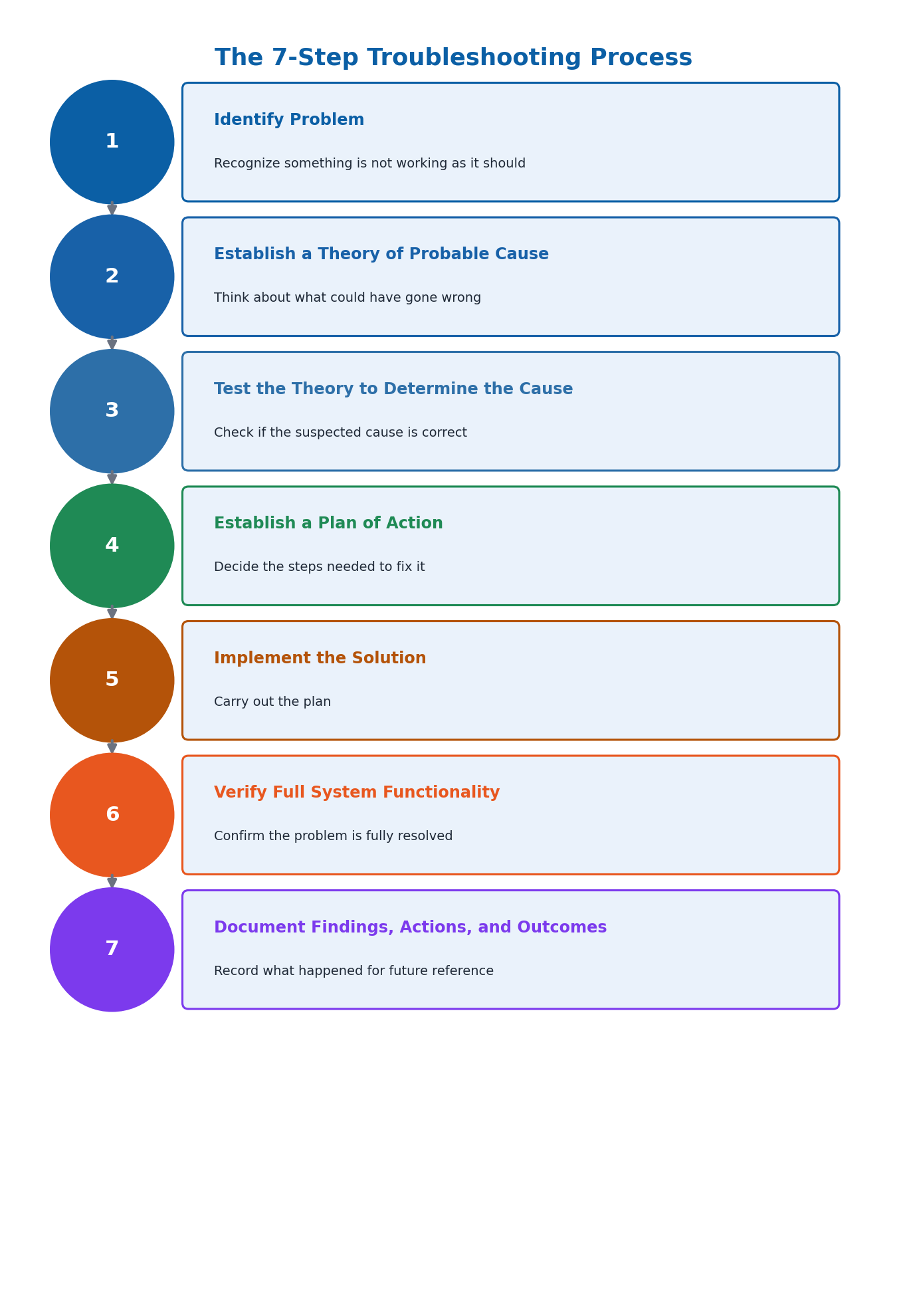
Troubleshooting is essential for maintaining the smooth operation of computers, machines, and other equipment; when something goes wrong, it helps identify the problem and find a solution quickly, preventing downtime, reduced productivity, and potential damage. A systematic approach to troubleshooting follows seven steps: (1) Identify the Problem, (2) Establish a Theory of Probable Cause, (3) Test the Theory to Determine the Cause, (4) Establish a Plan of Action to Resolve the Problem, (5) Implement the Solution, (6) Verify Full System Functionality, and (7) Document Findings, Actions, and Outcomes.
For example, if a laptop won't turn on: you first identify the problem (it won't start); establish a theory (dead battery, faulty power cord, or hardware issue); test the theory (plug in the power cord and see if it turns on); establish a plan (replace the battery); implement the solution (buy and install a new battery); verify functionality (check the laptop turns on and works without being plugged in); and finally document what happened for future reference.
4.2 Why Troubleshooting Matters in Computing Systems
Troubleshooting is important in computing systems for several key reasons. It prevents downtime — periods when a system is not operational, which can be very costly for businesses that depend on their systems. It ensures data integrity by identifying and resolving software bugs or hardware failures that could corrupt data. It improves security by identifying vulnerabilities and breaches so they can be addressed quickly.
Troubleshooting also enhances performance by identifying causes of slow performance, such as insufficient memory or software conflicts; extends equipment life by catching small issues before they become big problems; saves costs by avoiding expensive repairs or replacements; and enhances user experience by keeping systems reliable and user-friendly.
4.3 Basic Software-Related Issues
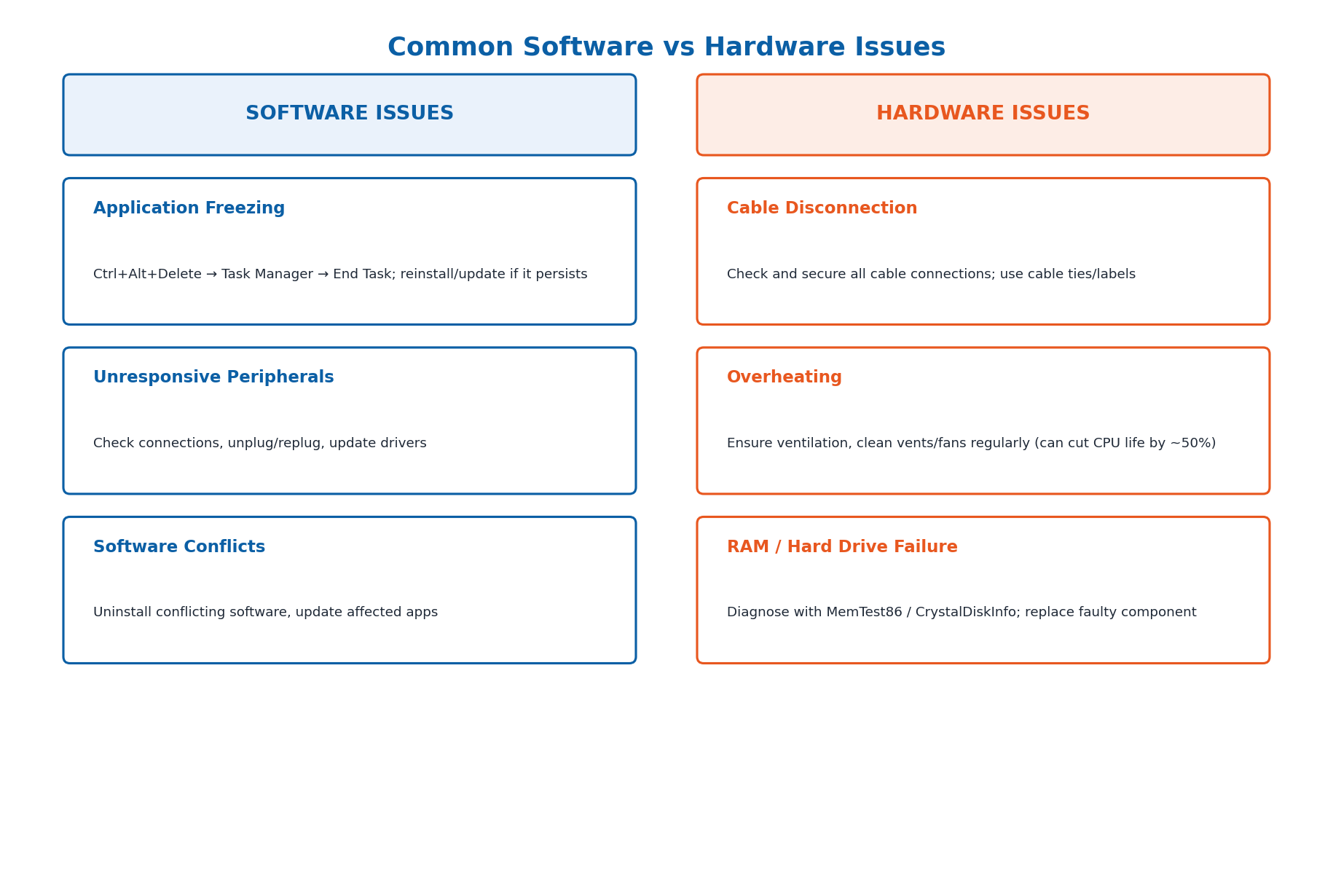
Application freezing occurs when a program stops responding. The solution: press Ctrl+Alt+Delete to open Task Manager, select the unresponsive application, and click 'End Task'; if the problem persists, reinstall the application or check for updates. Unresponsive peripherals (keyboards, mice, printers) can often be fixed by checking connections, unplugging and replugging the device, or updating its drivers.
Restarting a computer can fix many software issues because it clears the system's memory and stops background processes that might be causing conflicts — restarting alone can fix up to 50% of all software issues. The power button can force a shutdown when a computer is unresponsive to normal commands, but this should only be used as a last resort since it can cause data loss if programs are not properly closed.
4.4 Basic Hardware Issues and Workspace Safety
Common hardware issues include cable disconnection (loose or disconnected cables causing devices to stop working), overheating (which can cause a computer to slow down, freeze, or shut down unexpectedly), and peripheral device problems (devices not being recognized or not working correctly).
Maintaining a safe, organized workspace helps prevent these issues: proper cable management (using cable ties and labels) prevents accidental disconnections, while proper ventilation (placing the computer in a well-ventilated area and regularly cleaning vents and fans) prevents overheating. High temperatures can reduce a CPU's lifespan by up to 50%, so proper cooling matters significantly.
4.5 Hardware Diagnosis and Maintenance
Common signs of RAM failure include frequent system crashes, Blue Screens of Death (BSOD), poor performance, and failure to boot — RAM errors account for up to 10% of all computer crashes and BSODs. RAM issues can be diagnosed using built-in tools like Windows Memory Diagnostic or third-party tools like MemTest86. Symptoms of hard drive failure include strange noises (like clicking), slow performance, frequent crashes, and corrupted files; hard drive health can be checked using SMART (Self-Monitoring, Analysis, and Reporting Technology) status checks or tools like CrystalDiskInfo.
Upgrading or replacing hardware can significantly improve performance and extend a computer's lifespan. To upgrade RAM: determine the type and maximum capacity your motherboard supports, purchase compatible RAM, power off the computer, and insert the new RAM. To replace a hard drive: back up your data first, purchase a compatible drive, power off the computer, disconnect the old drive and connect the new one, then reinstall the operating system and restore data from the backup.
4.6 Software Maintenance and Security Threats
Regularly installing updates and software patches protects against vulnerabilities and ensures optimal performance — for example, the 2017 WannaCry ransomware attack exploited a vulnerability in older Windows systems that had already been patched in a security update, showing how critical updates can be. Resolving software conflicts involves identifying and uninstalling conflicting software, or reinstalling/updating affected applications.
Protecting against security threats involves using antivirus software to scan for and remove malware, regularly updating antivirus definitions, and performing full system scans; applying operating system updates to patch newly discovered security vulnerabilities; and creating strong passwords using a combination of uppercase letters, lowercase letters, numbers, and special characters, changed regularly and managed with a password manager.
4.7 Data Management and Backups
Effective data management means storing and organizing data so it is easy to find, accurate, and available when needed. Managing storage space involves deleting unnecessary files (old documents, downloads, temporary files) and moving large files (like videos and photos) to external or cloud storage to free up space on the internal drive.
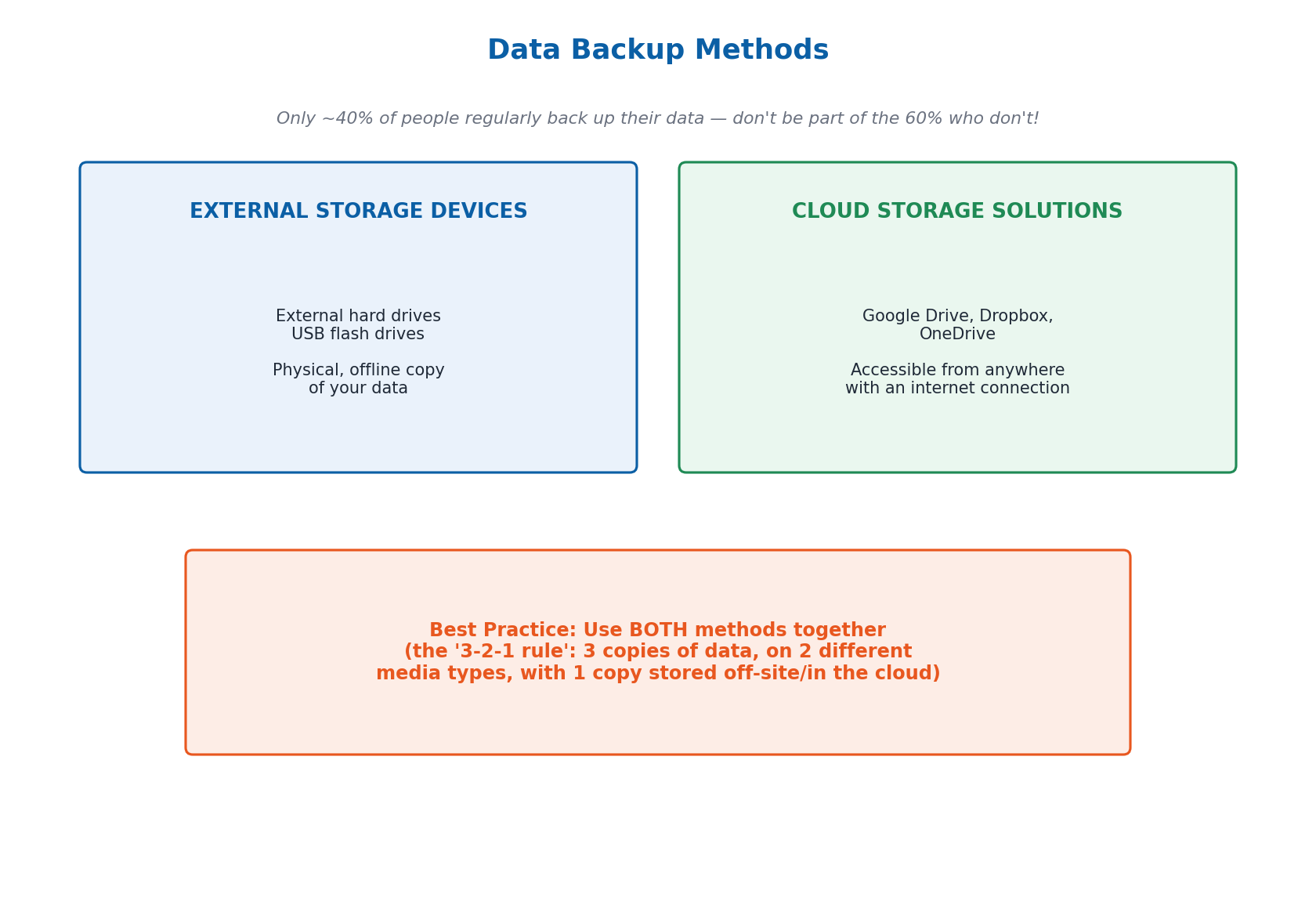
Regular backups create copies of data so it can be recovered if lost, damaged, or affected by a disaster — yet it is estimated that 60% of people have never backed up their data. Two main backup methods exist: using external storage devices (external hard drives or USB flash drives) for a physical copy of data, and utilizing cloud solutions (Google Drive, Dropbox, OneDrive) to back up data online and access it from anywhere with an internet connection.
4.8 Using Resources and Assisting Others
When encountering issues, many resources can help: built-in help features in operating systems and applications provide solutions to common problems, while internet resources such as forums, tutorials, and FAQs (Stack Exchange, Reddit, YouTube) help solve more complex problems by searching error messages or descriptions online.
Helping others with computer problems reinforces your own troubleshooting skills. Effective communication means clearly explaining the issue and troubleshooting steps, listening carefully, and asking questions to gather information. Collaborating with peers, teachers, or IT staff, and sharing troubleshooting knowledge through guides or tutorials, helps build a collaborative learning environment and leads to faster, more effective solutions.
Important Definitions
What is troubleshooting?
A systematic process for identifying, diagnosing, and resolving problems with computers, machines, or other equipment, helping to prevent downtime and restore normal operation.
What is downtime?
A period when a computer system is not operational, which can be costly for businesses since it disrupts work and reduces productivity.
What is data integrity?
The assurance that data is accurate and reliable, undamaged by software bugs, hardware failures, or corruption.
What is malware?
Malicious software designed to damage, disrupt, or gain unauthorized access to a computer system, detected and removed using antivirus software.
What is BSOD (Blue Screen of Death)?
An error screen displayed by Windows after a serious system crash, often caused by hardware failures such as faulty RAM.
What is a data backup?
A copy of data stored separately from the original, made regularly to allow recovery if the original data is lost, damaged, or affected by a disaster.
What is SMART (in hard drive diagnostics)?
Self-Monitoring, Analysis, and Reporting Technology — a system built into hard drives that monitors their health and can warn of impending failure.
What is a peripheral device?
An external device connected to a computer, such as a keyboard, mouse, or printer, used for input or output.
Key Facts and Relations
| Topic | Key Fact / Relation |
|---|---|
| The 7-step troubleshooting process | Identify → Theory of Cause → Test Theory → Plan of Action → Implement → Verify → Document |
| Restarting fixes software issues | Up to ~50% of all software issues |
| RAM errors cause crashes/BSOD | Up to ~10% of all computer crashes and BSODs |
| People who never back up data | Estimated ~60% of people |
| Overheating impact on CPU lifespan | Can reduce CPU lifespan by up to ~50% |
| Strong password components | Uppercase + lowercase + numbers + special characters |
| RAM diagnostic tools | Windows Memory Diagnostic; MemTest86 |
| Hard drive diagnostic tools | SMART status checks; CrystalDiskInfo |
Diagrams
The Seven-Step Troubleshooting Process: A flowchart of the systematic troubleshooting process, from Identify Problem through to Document Findings, Actions, and Outcomes
Common Software vs Hardware Issues: A side-by-side comparison of common software issues (freezing, unresponsive peripherals) and hardware issues (cable disconnection, overheating, RAM/hard drive failure) with their solutions
Data Backup Methods: A comparison of the two main data backup methods — external storage devices and cloud storage solutions — with their key features and examples
Short Questions & Answers
What is the first step in the systematic process of troubleshooting, and why is it important?
The first step is to Identify the Problem — recognizing that something is not working as it should. This is important because you cannot solve a problem correctly until you have clearly understood what the actual problem is.
After identifying a problem, what is the next step in troubleshooting, and how does it help?
The next step is to Establish a Theory of Probable Cause — thinking about what could have gone wrong. This narrows down the possible causes so that testing and fixing can proceed efficiently rather than randomly.
Describe the importance of testing a theory during the troubleshooting process, with an example.
Testing a theory confirms whether the suspected cause is actually correct before committing time and resources to a fix; for example, if you suspect a laptop's battery is dead, plugging in the power cord and seeing if it turns on tests that specific theory.
Explain what the 'Implement the Solution' step entails.
This step means actually carrying out the planned fix — for example, if the plan was to replace a dead battery, implementing the solution means purchasing and installing the new battery.
Why is it necessary to verify full system functionality after implementing a solution?
Verifying functionality confirms that the problem has been fully resolved and that the system now works properly, rather than assuming the fix worked without checking, which could leave the issue unresolved or partially fixed.
What is the benefit of restarting a computer when troubleshooting software issues?
Restarting clears the system's memory and stops background processes that might be causing conflicts, which can resolve up to 50% of all software issues quickly and without further intervention.
Why is proper ventilation important for a computer's hardware health?
Proper ventilation prevents overheating, which can otherwise cause a computer to slow down, freeze, or shut down unexpectedly, and can reduce a CPU's lifespan by up to 50% if left unaddressed.
What is the difference between using external storage devices and cloud solutions for backups?
External storage devices (hard drives, USB drives) provide a physical, offline copy of data that you control directly, while cloud solutions (Google Drive, Dropbox, OneDrive) store data online, allowing access from anywhere with an internet connection.
Long Questions & Answers
Explain the systematic process of troubleshooting. Describe each of the seven steps in detail with an example.
What happens in the first two steps of troubleshooting — identifying the problem and establishing a theory?
The first step, Identify the Problem, involves clearly recognizing and precisely defining that something is not working as it should — for example, noticing that a laptop does not turn on at all when its power button is pressed, a clear, easily observable symptom. The second step, Establish a Theory of Probable Cause, involves thinking systematically through the different possibilities of what could have gone wrong to produce that symptom — for the laptop example, plausible theories might include a dead battery, a faulty power cord, or a more serious internal hardware issue.
What happens in the next two steps — testing the theory and establishing a plan of action?
The third step, Test the Theory to Determine the Cause, involves actively checking whether the suspected cause is genuinely correct rather than simply assuming it — for example, if a dead battery is suspected, plugging the laptop into its power cord tests whether it can then turn on. The fourth step, Establish a Plan of Action, only happens once a test has confirmed the actual cause, and involves deciding what concrete steps will fix it — for a confirmed dead battery, this might mean replacing it or keeping the laptop plugged in until a replacement is available.
What happens in steps five and six — implementing the solution and verifying functionality?
The fifth step, Implement the Solution, involves actually putting the established plan into concrete action — for the laptop example, this means physically purchasing and installing a new, compatible battery. The sixth step, Verify Full System Functionality, involves carefully checking that the original problem is now completely resolved and the system is working correctly and reliably again — in this example, confirming that the laptop now turns on and keeps operating normally even when not plugged into external power.
What happens in the final step — documenting findings, actions, and outcomes — and why does it matter?
The seventh and final step, Document Findings, Actions, and Outcomes, involves writing down and recording exactly what the original problem was, what was initially suspected as its likely cause, what actions were ultimately taken to fix it, and what the final outcome turned out to be. This step matters because it creates a clear, permanent, and easily accessible record that can be referred back to in the future, helping yourself or others troubleshoot similar problems more quickly and efficiently if they happen again.
Analyze the various ways troubleshooting is vital in computing systems, particularly in preventing downtime, ensuring data integrity, and improving security. Provide specific examples to support your analysis.
How does troubleshooting help prevent costly downtime?
Downtime — any period during which a computer system is not operational or usable — can be extremely costly, particularly for businesses that depend on their systems operating reliably day to day; when a critical system goes down, employees may be unable to work productively, directly reducing productivity and revenue. Effective, well-practiced troubleshooting skills allow technical staff to identify the underlying causes of problems and resolve them more quickly, significantly reducing both the frequency and duration of downtime — for example, a technician skilled in systematic troubleshooting can restore a stalled file server far more rapidly than someone randomly guessing at solutions.
How does troubleshooting help ensure data integrity?
Data integrity means the assurance that stored data remains accurate, complete, and reliable over time. Various problems, including software bugs, hardware failures, or unexpected system crashes, can corrupt data in different ways, leading to inaccurate, incomplete, or unusable information. Troubleshooting plays an essential role by helping identify the specific underlying source of any data corruption, allowing that root cause to be properly addressed and preventing the same corruption from recurring — for example, thorough troubleshooting of a database producing incorrect results might reveal a software bug, which can then be fixed through an update, protecting the organization's data integrity.
How does troubleshooting help improve system security?
Computer systems are frequently targeted by malicious cyber-attacks, and troubleshooting techniques can effectively help identify underlying security vulnerabilities and any actual breaches that may already have occurred, allowing protective or corrective action to be taken more quickly. For instance, if unusual and unexplained network activity is noticed on a company's network, troubleshooting that activity might reveal malware that has infected one or more systems, allowing it to be removed and vulnerable systems to be better secured — directly protecting the confidentiality, integrity, and availability of the organization's sensitive data.
Using a case study where a printer is not printing, explain how you would identify the problem and establish a theory of probable cause, then walk through the remaining troubleshooting steps.
In the printer case study, how are the problem identified and a theory of probable cause established?
In this case study, an office printer has suddenly stopped printing. Identifying the Problem confirms the observable symptom: the printer produces no output when a print job is sent, despite its power light being on and the device otherwise appearing powered on normally. Establishing a Theory of Probable Cause then involves thinking through several plausible explanations, such as a paper jam, the printer running out of ink or toner, a loose or disconnected cable, an outdated or corrupted driver, or a stuck print queue.
How is the probable cause tested and confirmed in the printer case?
Testing the Theory to Determine the Cause involves systematically checking each plausible explanation one at a time: opening the printer's access panel to check for a paper jam, checking the ink or toner indicators, checking that all cables are securely connected, and checking the computer's print queue for a stuck job. In this case, opening the access panel reveals a small piece of paper jammed inside the printer's internal paper path, confirming the actual cause of the problem.
How are the plan of action and solution implemented in the printer case?
Establishing a Plan of Action involves deciding on the most appropriate way to remove the identified paper jam safely, generally by following the printer manufacturer's official instructions to avoid damaging the printer's internal mechanism. Implementing the Solution then involves actually carrying out this plan by physically removing the jammed paper, following the manufacturer's guidance closely and carefully throughout the process.
How is functionality verified and the outcome documented in the printer case?
Verifying Full System Functionality involves sending a further test print job once the jam has been cleared, to confirm the printer is now printing normally and correctly again. Documenting Findings, Actions, and Outcomes then involves writing down and recording that the printer had stopped working due to an internal paper jam, that the jam was identified and safely removed, and that the printer was confirmed working again — a record that could prove useful to other staff or IT support if the same printer jams again in the future.
Describe common methods for identifying and removing malware infections, applying operating system updates for security, and managing strong passwords, explaining why each practice matters.
How do you identify and remove malware infections, and why does this matter?
The standard approach involves using dedicated, reputable antivirus software to regularly scan a computer for malware — software deliberately designed by attackers to damage a system, disrupt its operation, or gain unauthorized access to a user's data. It is important to regularly update the antivirus software's virus definitions, since new malware is constantly being created, meaning outdated definitions may fail to detect newer threats. Performing regular full system scans, rather than relying only on faster quick scans, additionally helps ensure malware hidden in less commonly checked areas is not missed.
Why does applying operating system security updates matter?
Software companies such as Microsoft and Apple regularly discover new security vulnerabilities in their operating systems and release updates and patches to close them before attackers can exploit them. The 2017 WannaCry ransomware attack illustrates why this matters: it exploited a known Windows vulnerability that had already been patched in an update released before the attack. Systems that had promptly installed that update were fully protected, while systems that had not remained vulnerable and were successfully attacked as a result.
What makes a strong password, and why does password management matter?
The recommended best practice is to use a well-balanced combination of uppercase letters, lowercase letters, numbers, and special characters in a password, since passwords built this way are considerably harder for automated password-cracking tools to guess than simpler passwords relying on just one character type, such as lowercase letters alone. Regularly changing passwords, and using a dedicated password manager to securely track and store strong, unique passwords across different accounts, further reduces the risk of unauthorized access to personal or sensitive accounts and data.
Multiple Choice Questions (MCQs)
What is the first step in the systematic process of troubleshooting? (A) Establish a Theory of Probable Cause (B) Implement the Solution (C) Identify Problem (D) Document Findings, Actions, and Outcomes
Correct answer: (C) Identify Problem. The systematic troubleshooting process always begins with Identify Problem — recognizing that something is not working as it should.
Why is effective troubleshooting important for maintaining systems? (A) It helps save money on repairs (B) It prevents the need for professional help (C) It ensures systems operate smoothly and efficiently (D) It allows for more frequent system updates
Correct answer: (C) It ensures systems operate smoothly and efficiently. Effective troubleshooting's core purpose is to ensure systems continue to operate smoothly and efficiently by quickly identifying and resolving problems.
Which step involves coming up with a theory about what might be causing a problem? (A) Test the Theory to Determine the Cause (B) Establish a Theory of Probable Cause (C) Implement the Solution (D) Verify Full System Functionality
Correct answer: (B) Establish a Theory of Probable Cause. Establish a Theory of Probable Cause is the step where you think through possible causes of the identified problem.
After implementing a solution, what is the next step in the troubleshooting process? (A) Document Findings, Actions, and Outcomes (B) Test the Theory to Determine the Cause (C) Verify Full System Functionality (D) Establish a Plan of Action to Resolve the Problem
Correct answer: (C) Verify Full System Functionality. After implementing the solution, the next step is to Verify Full System Functionality, confirming the problem is truly resolved.
Which of the following is an example of identifying a problem in troubleshooting? (A) Testing a laptop battery by plugging in the power cord (B) Coming up with a plan to replace a laptop battery (C) Noticing that a laptop does not turn on when the power button is pressed (D) Writing down that a laptop battery was replaced
Correct answer: (C) Noticing that a laptop does not turn on when the power button is pressed. Identifying the problem means recognizing the symptom itself — in this case, noticing the laptop doesn't turn on.
Why is documenting findings, actions, and outcomes important in troubleshooting? (A) It helps solve problems faster (B) It provides a record for future reference (C) It allows for more efficient testing (D) It ensures the solution is implemented correctly
Correct answer: (B) It provides a record for future reference. Documentation creates a record that helps you or others troubleshoot similar problems more efficiently in the future.
What is the purpose of establishing a plan of action in troubleshooting? (A) To identify the problem (B) To verify full system functionality (C) To determine the cause of the problem (D) To decide on the steps needed to resolve the issue
Correct answer: (D) To decide on the steps needed to resolve the issue. Establishing a plan of action means deciding on the specific steps that will be taken to fix the confirmed problem.
Why is troubleshooting important in computing systems? (A) It ensures hardware components are always up to date (B) It prevents the need for data backups (C) It helps keep systems running smoothly and securely (D) It eliminates the need for software updates
Correct answer: (C) It helps keep systems running smoothly and securely. Troubleshooting helps keep computing systems running smoothly, securely, and reliably by resolving issues as they arise.
What does troubleshooting help prevent by quickly identifying and resolving issues? (A) The need for professional help (B) The need for software updates (C) Downtime and lost productivity (D) The need for regular maintenance
Correct answer: (C) Downtime and lost productivity. Quick, effective troubleshooting directly reduces system downtime and the resulting lost productivity.
Which of the following is an example of ensuring data integrity through troubleshooting? (A) Identifying a software bug that causes incorrect database results (B) Replacing a faulty printer (C) Using a cooling pad to prevent laptop overheating (D) Updating the operating system regularly
Correct answer: (A) Identifying a software bug that causes incorrect database results. Identifying a software bug causing incorrect data directly addresses data integrity, since it prevents inaccurate data from being stored or used.
Quick Revision Summary
- 7-step troubleshooting process: Identify → Theory of Cause → Test Theory → Plan of Action → Implement → Verify → Document
- Troubleshooting matters because it prevents downtime, ensures data integrity, improves security, enhances performance, extends equipment life, saves costs, and improves user experience
- Application freezing fix: Ctrl+Alt+Delete → Task Manager → End Task; restarting fixes ~50% of software issues
- Common hardware issues: cable disconnection, overheating (reduces CPU life by up to 50%), peripheral problems — prevented with cable management and ventilation
- RAM failure signs: crashes, BSOD, poor performance (diagnosed with Windows Memory Diagnostic/MemTest86); Hard drive failure signs: clicking noises, slow performance, corrupted files (diagnosed with SMART/CrystalDiskInfo)
- Security best practices: regular OS/software updates, antivirus scans, strong passwords (upper+lower+numbers+symbols)
- Backup methods: external storage devices (physical copy) vs cloud solutions (Google Drive, Dropbox, OneDrive — accessible anywhere); ~60% of people never back up their data
- Resources: built-in help features + internet resources (forums, tutorials, FAQs); effective communication and collaboration help when assisting others
Exam Tips
- Memorize the 7 troubleshooting steps IN ORDER — exam questions frequently ask 'what comes after step X'
- Remember the key statistics: restarting fixes ~50% of software issues; RAM errors cause ~10% of crashes/BSOD; ~60% of people never back up data; overheating can cut CPU life by ~50%
- Distinguish software issues (freezing, conflicts — fixed via Task Manager, restart, updates) from hardware issues (cables, overheating, RAM/HDD failure — fixed via diagnostics, replacement)
- For backup questions, always mention BOTH methods: external storage devices AND cloud solutions, with an example of each
- Strong password checklist: uppercase + lowercase + numbers + special characters, changed regularly, tracked with a password manager
- Documentation (the final troubleshooting step) is often under-emphasized by students but is frequently tested — always mention it as the last step